Alert Handling
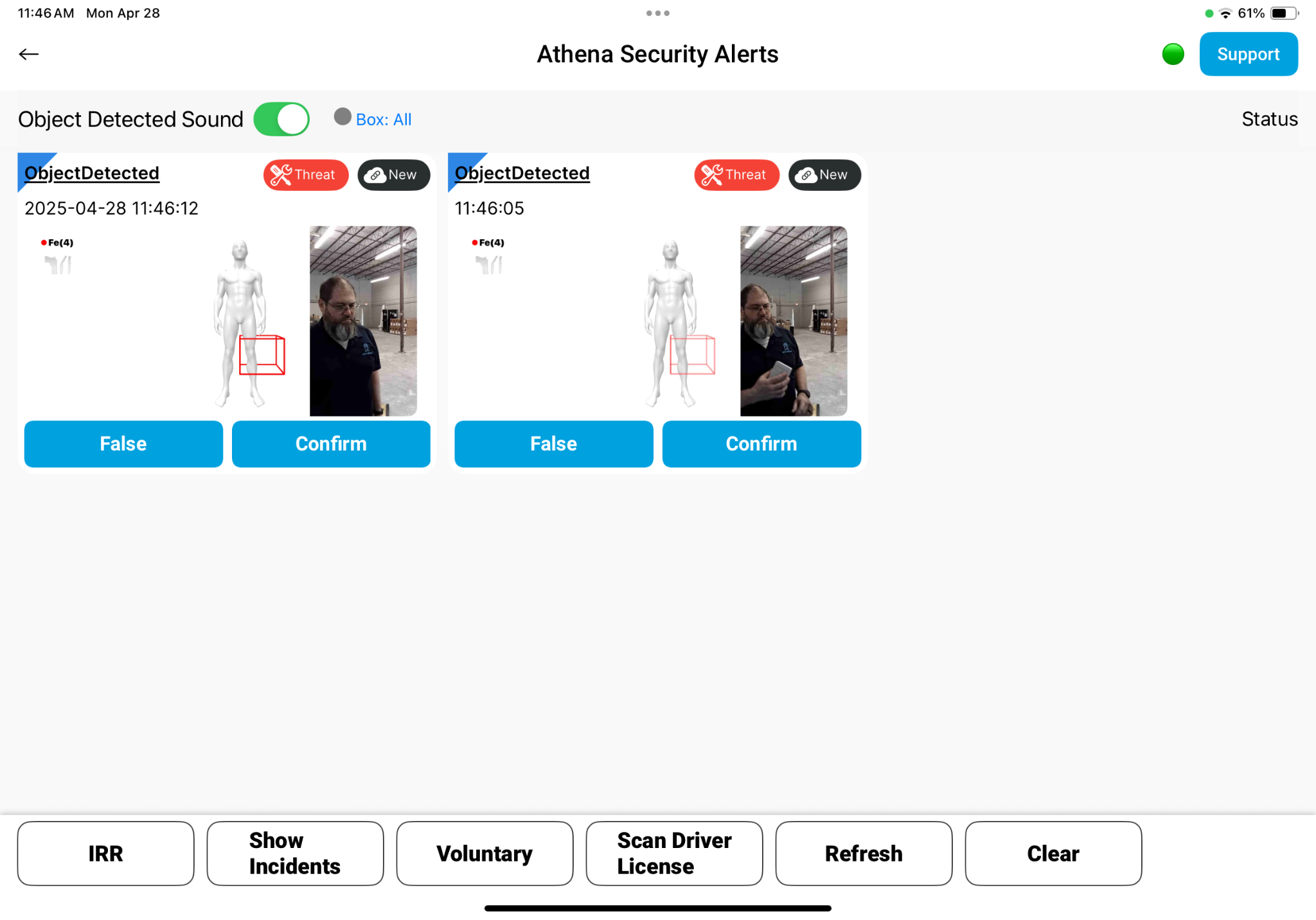
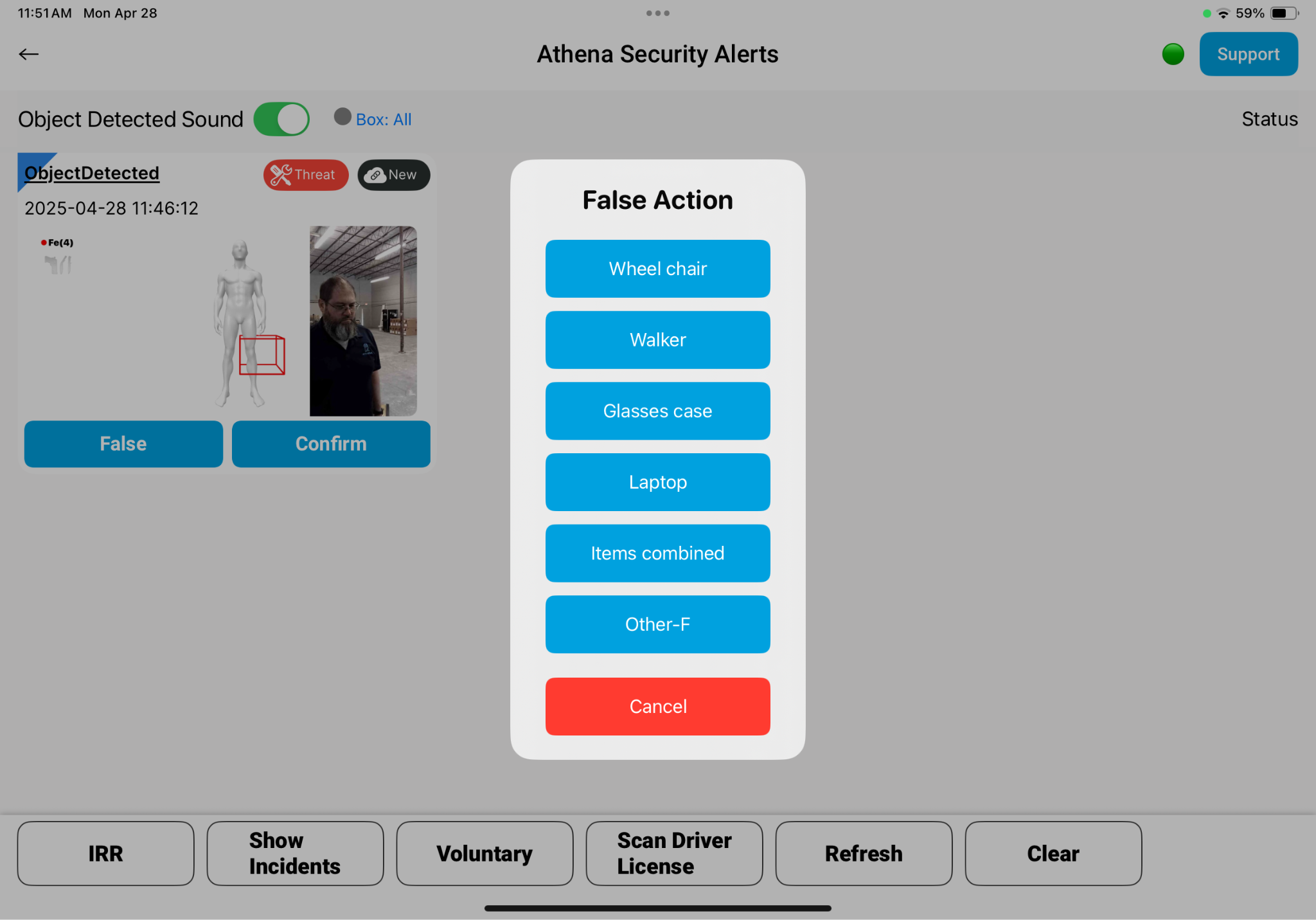
In the picture, we see that a person has triggered an alert in the Apollo System, which sends the alert over to the Athena Operator iPad.
The Alert tells us a few important pieces of information:
- An object was detected
- The object was Ferrous Metal (Fe)
- The general location on the body where the object was detected
Who alerted the system (a picture of the person is provided).
To zoom in on the alert pictures, you can triple-tap on the alert to bring up a larger version of the alert.
Click on the back arrow in the upper left corner to go back to the main screen.
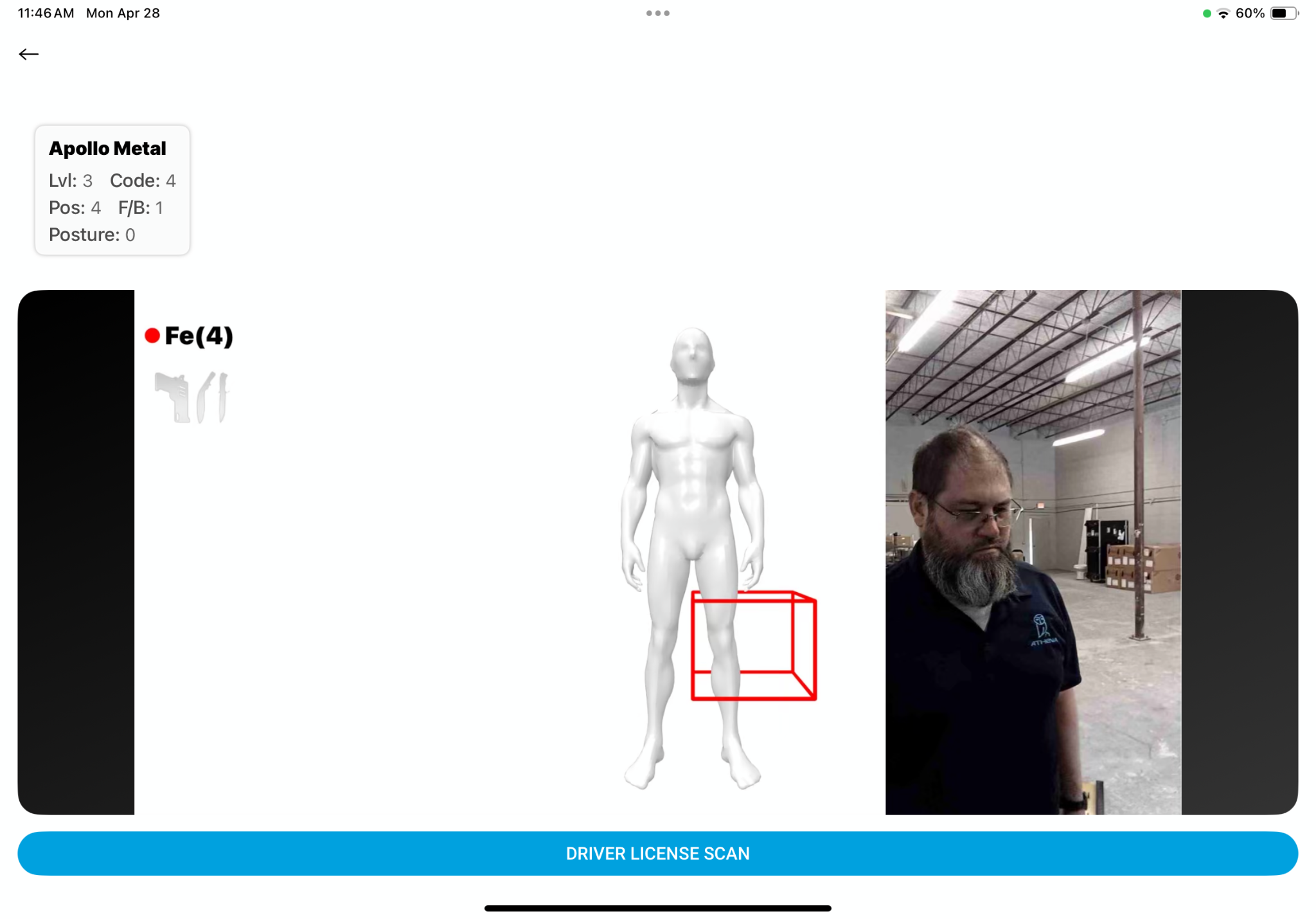
When a secondary inspection confirms the presence of contraband, the officer clicks on the Confirm button under that alerts on the main screen and they are prompted with an Action Confirm menu.
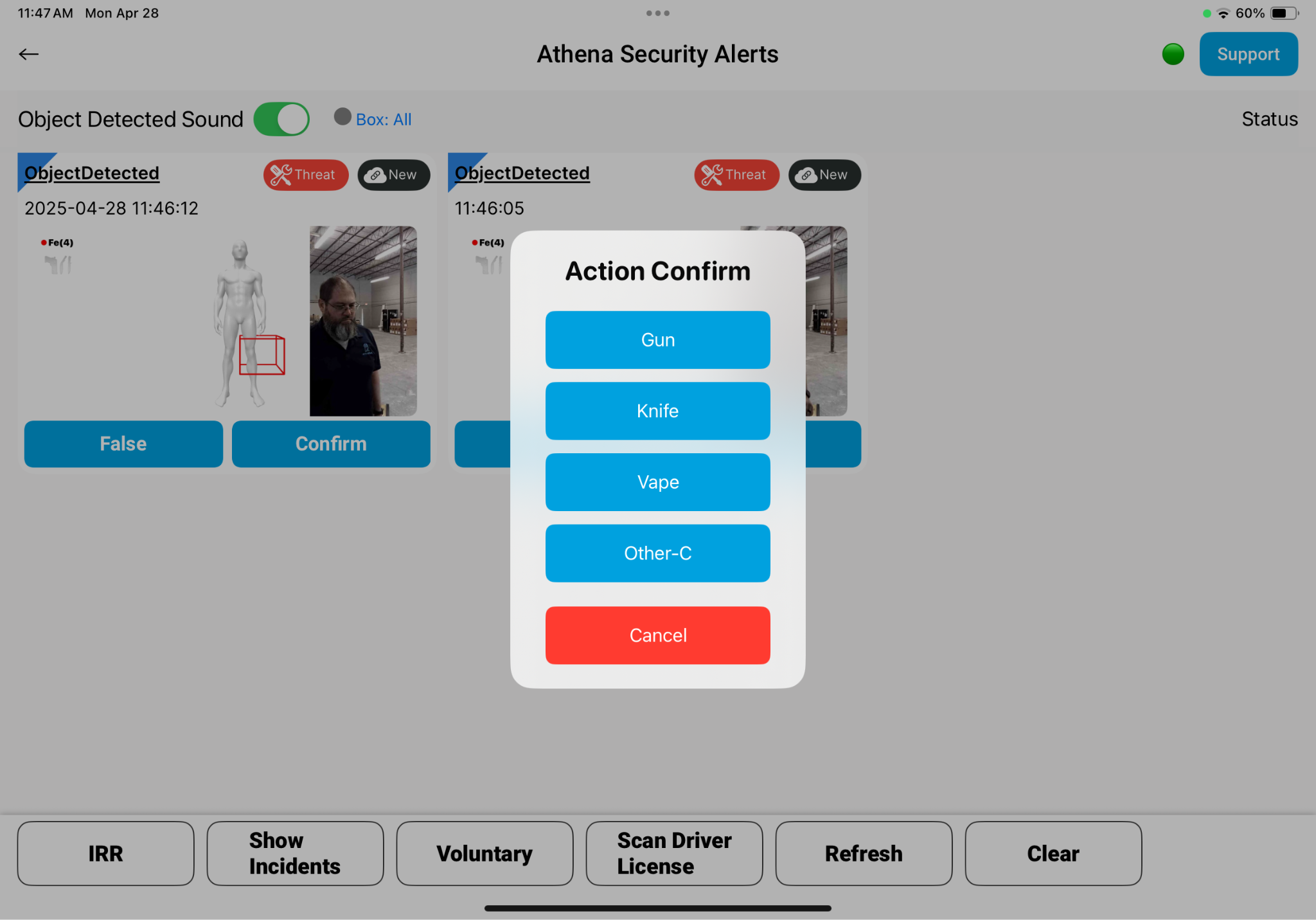
Incident Response Report (IRR)
An IRR form is loaded whenever the officer either Confirms an Alert or they click the IRR Button on the main screen. The purpose of the IRR is to conform with compliance standards by documenting the nature of an incident.
While the IRR form is customizable, the default form contains the following fields:
False Alerts
If secondary inspection identifies the alert as a False Alarm, the officer can click on the False button under the alert on the main screen, where they are prompted to select the type of object triggered the alert. Once an alert is either Confirmed or marked as False, the alert is removed from the screen.
Was this article helpful?
That’s Great!
Thank you for your feedback
Sorry! We couldn't be helpful
Thank you for your feedback
Feedback sent
We appreciate your effort and will try to fix the article